Getting Started
Overview
Event Video Playback is a comprehensive system that consists of three integrated components:
- The EventVideoPlayback Service - A Windows service that handles creation of the videos
- The Event Video Playback Library - A PLC library that maintains an Image Ring Buffer containing enough images to create videos of configurable length and actively interacts with the EventVideoPlayback Service
- The Event Video Playback HMI Control - A modified Logger control that allows associated videos to be played from log entries
This guide will walk you through configuring each component to work together in your TwinCAT project.
EventVideoPlayback Service Configuration
The EventVideoPlayback Service controls video creation and automatic deletion of video files based on age and folder size limits.
To restart the service:
- Open the Windows Services window
- Right-click the EventVideoPlayback service
- Choose Stop or Start
Configuration File Location
The configuration file is located at:
C:\Program Files\Beckhoff USA Community\EventVideoPlayback\Service\EventVideoPlaybackService.config.json
Open the file with Notepad or Visual Studio to edit the following parameters:
{
  "CodecFourCC": "avc1",
  "VideoDeleteTime": 1,
  "AdsPort": 26129,
  "MaxFolderSize": 250
}
CodecFourCC
This is the codec used to create the video from the service. The service supports multiple codecs, but not all are web-compatible. For TwinCAT HMI compatibility, stick with these recommended options:
| Codec | FourCC | Description | Web Compatible | Recommended |
|---|---|---|---|---|
| H.264 | avc1 |
Most common, best compatibility | ✓ | Yes |
| H.264 | avc3 |
Alternative H.264 variant | ✓ | Yes |
| H.265/HEVC | hev1 |
Better compression, newer | ✓ | Maybe |
| H.265/HEVC | hvc1 |
Alternative HEVC variant | ✓ | Maybe |
| MPEG-4 | mp4v |
Older standard | ✓ | No |
| VP9 | vp09 |
Google’s codec | ✓ | No |
| AV1 | av01 |
Newest, best compression | ⚠ | No |
avc1 (H.264). It offers the widest compatibility across all web browsers and HMI platforms.
VideoDeleteTime
This setting determines how long video files remain on the system before automatic cleanup.
- Value type: Floating point
- Units: Days
- Example: Use
0.5for half a day (12 hours)
The service automatically deletes video files older than the specified time.
AdsPort
MaxFolderSize
This setting limits the total size of the video storage folder.
- Value type: Integer
- Units: MB (megabytes)
When a new video is created, the service checks the folder size. If the limit is exceeded, the oldest video will be automatically deleted to free up space.
PLC Function Block Parameters
The FB_ImageToVideo function block maintains an image buffer in Router memory. The memory requirements are directly related to:
- FramesPerSecond - Higher frame rates require more memory
- Record time - Longer videos require more memory
- Image size - Larger images require more memory
- ReductionFactor - Larger reduction factors (0.1 to 1.0) require more memory
VAR
    // ImageToVideo Instance
    Playback : FB_ImageToVideo := (CameraName := 'Camera1',
                                   FramesPerSecond := 10,
                                   TimeBeforeEvent := T#3S,
                                   TimeAfterEvent := T#3S,
                                   VideoOutputDirectory := 'C:\EventVideos',
                                   ReductionFactor := 0.25);

    // Event Trigger Boolean
    TriggerEvent1 : BOOL;
    TriggerEvent2 : BOOL;
END_VAR
Parameter Descriptions
CameraName
A unique identifier for each FB_ImageToVideo instance.
- Examples:
Camera1,Infeed_Camera,Arm_Camera - Requirement: Must be unique across all instances
FramesPerSecond
The rate at which images are added to the Image Ring Buffer.
- Value type: Integer
- Example:
10frames per second
TimeBeforeEvent and TimeAfterEvent
These times combined determine the total video duration.
- Value type: TIME (e.g.,
T#3S) - Units: Seconds
- Total video length: TimeBeforeEvent + TimeAfterEvent
VideoOutputDirectory
The storage location for created videos. Videos are saved in a subfolder named after the CameraName.
- Example: If set to
C:\EventVideosand CameraName isCamera1, videos will be saved toC:\EventVideos\Camera1\
ReductionFactor
Scales down the original image before storing it in the buffer to reduce memory usage.
- Value type: Decimal
- Range: 0.1 to 1.0
- Example:
0.25= 25% of original size (reduces memory by 75%)
PLC Event Video Playback Library Parameters
These library-level parameters ensure adequate Router Memory is available for your configuration. On startup, the system evaluates available Router Memory. If insufficient memory is detected, a log entry will be generated and Event Video Playback will not function.
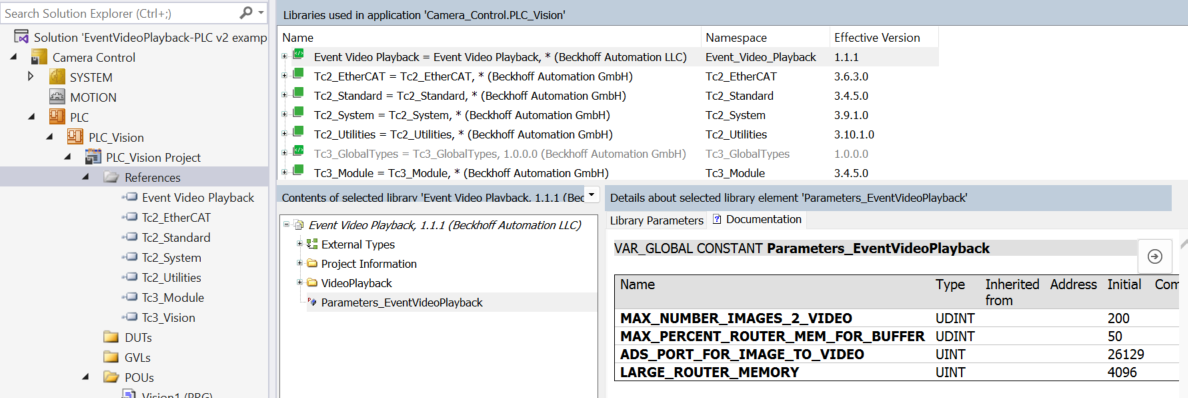
MAX_NUMBER_IMAGES_2_VIDEO
Defines the maximum number of images in the ring buffer.
Formula: Must be at least 2 greater than: FramesPerSecond × (TimeBeforeEvent + TimeAfterEvent)
Example: For 10 FPS and 6 seconds total time:
- Minimum required: (10 × 6) + 2 = 62 images
MAX_PERCENT_ROUTER_MEM_FOR_BUFFER
Sets the maximum percentage of Router Memory allowed per FB_ImageToVideo instance.
Single Instance Example:
- If using one
FB_ImageToVideoinstance, set this to60to allocate up to 60% of Router Memory
Multiple Instance Example:
- If using three instances and want to allocate 60% total:
- Set this to
60 / 3 = 20%per instance - This ensures all three instances combined use no more than 60% of Router Memory
- Set this to
ADS_PORT_FOR_IMAGE_TO_VIDEO
LARGE_ROUTER_MEMORY
This parameter specifies the Router Memory size to use for memory checks when the actual value cannot be read programmatically.
Add to Existing TwinCAT Vision PLC Project
You can easily integrate Event Video Playback with existing TcVision projects by following these steps:
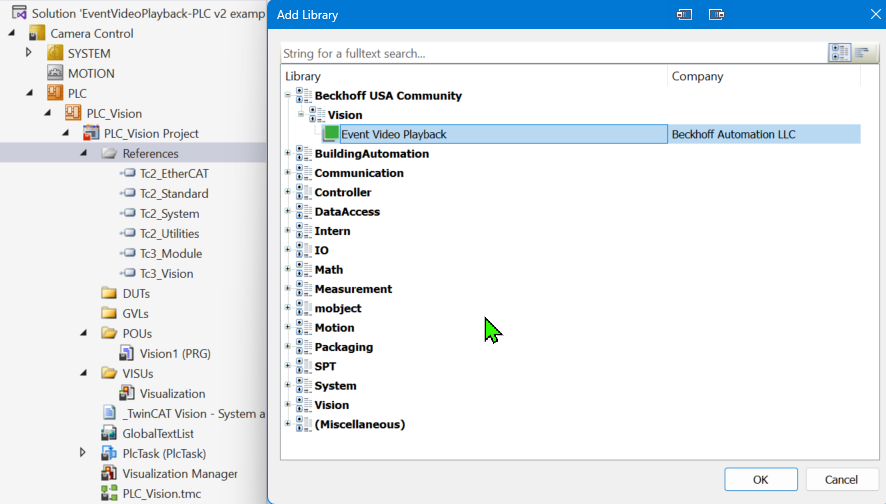
1. Add the Event Video Playback Library to the References
Add the Event Video Playback Library to the References section of the PLC Project.
2. Instantiate FB_ImageToVideo and TriggerEvent(s)
VAR
    // ImageToVideo Instance
    EVP1 : FB_ImageToVideo := (CameraName := 'Camera1',
                               FramesPerSecond := 10,
                               TimeBeforeEvent := T#3S,
                               TimeAfterEvent := T#3S,
                               VideoOutputDirectory := 'C:\TcEventVideos',
                               ReductionFactor := 0.25);

    // Event Trigger Boolean
    TriggerEvent1 : BOOL;
    TriggerEvent2 : BOOL;
END_VAR
3. Add a Reset Call to the First Scan
Add a Reset call to the first scan of POU:
EVP1.Reset();
4. Add the CyclicLogic Call
Add the CyclicLogic call to the main body of the POU. This MUST be called cyclically to work.
EVP1.CyclicLogic();
5. Add the AddImage Method
Add the AddImage method to the “new image” section of your program. This will add an image to the buffer of the Playback block.
EVP1.AddImage(ipImageIn := ImageIn);
6. Add the Trigger Logic
Add the trigger logic somewhere in your program. The TriggerAlarmForVideoCapture method only needs to be called once to start Event processing. Multiple event names can be used for events generating a log entry for the same ImageToVideo Instance.
IF TriggerEvent1 THEN
    TriggerEvent1 := FALSE;
    EVP1.TriggerAlarmForVideoCapture(LogEntryName := 'Log Entry Name1');
END_IF

IF TriggerEvent2 THEN
    TriggerEvent2 := FALSE;
    EVP1.TriggerAlarmForVideoCapture(LogEntryName := 'Log Entry Name2');
END_IF
HMI Configuration
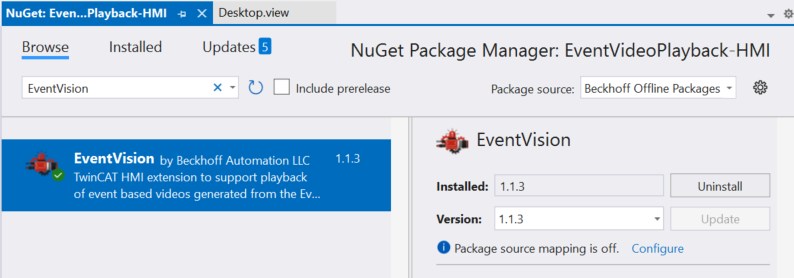
Add the EventVision NuGet Package
- Open the NuGet Package Manager in your HMI project
- Go to the Browse window
- Search for and add the EventVision package
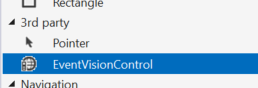
Add the EventVisionControl
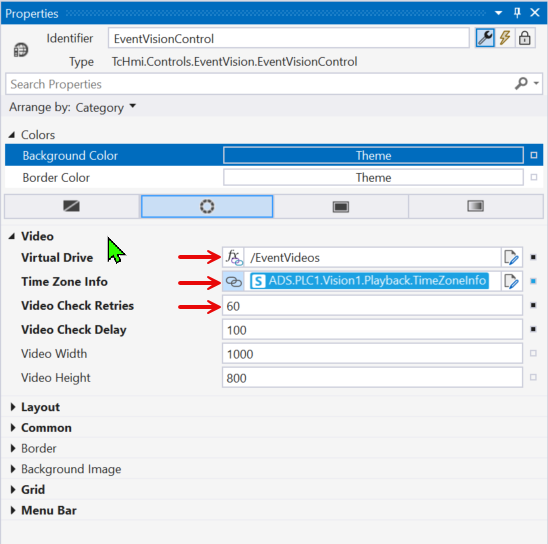
Once the package is installed, add the EventVisionControl to your HMI from the Toolbox.
HMI EventVisionControl Properties
After adding the EventVisionControl, set the properties:
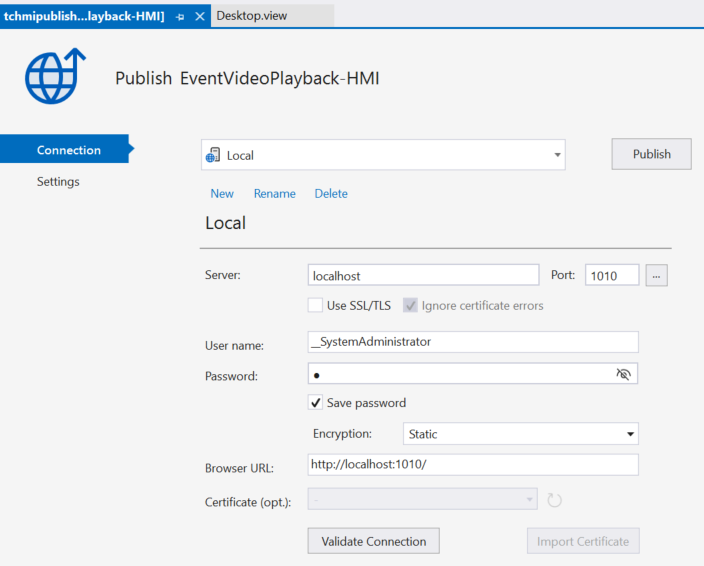
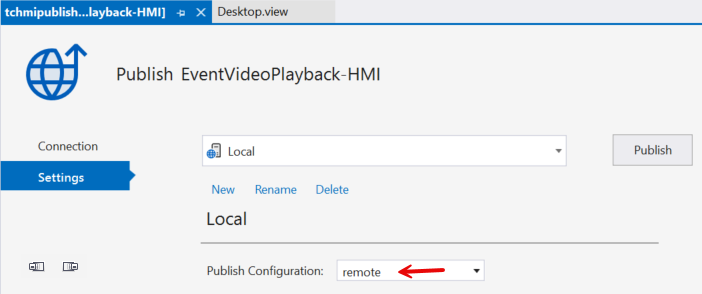
HMI Publish Configuration
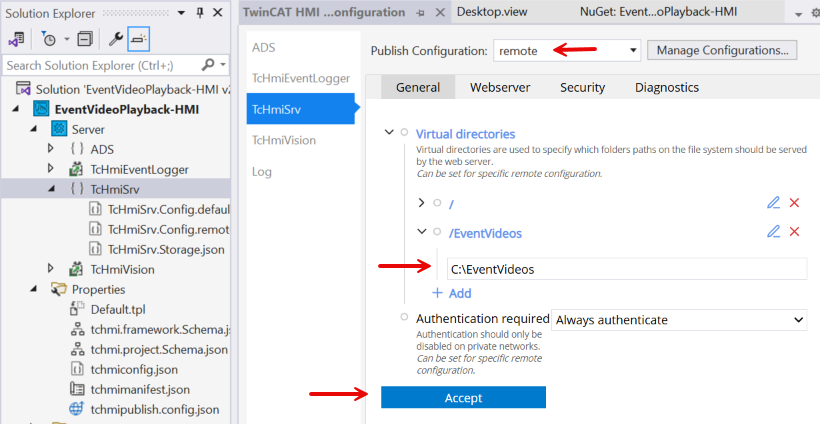
Configure a virtual directory to allow the HMI to access video files stored on the system.
Configure Virtual Directory
- In the Solution Explorer, navigate to Server → TcHmiSrv
- Add a virtual directory pointing to your video storage location
Next Steps
Now that you have configured Event Video Playback, you can:
- Test video capture by triggering events in your PLC code
- Review captured videos in your HMI
- Adjust service configuration parameters as needed
- Configure additional cameras by creating more
FB_ImageToVideoinstances
Support
Need help? Here are some resources:
- GitHub Issues - Report bugs or request features
- Beckhoff USA Community - Community support and discussions
- Documentation - Additional guides and references